
Software
Microsoft Teams channels can become a cluttered mess if not managed properly. These 10 best practices will help you organize communication, boost productivity, and keep your team’s workflow efficient—without drowning in notifications or disorganized conversations.
Organize Channels by Team Function, Not Department
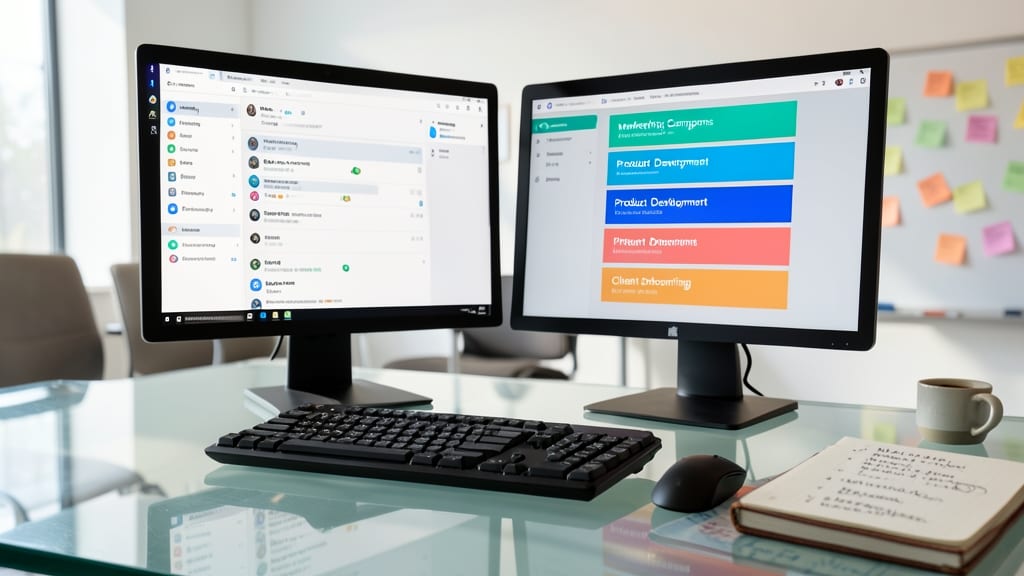
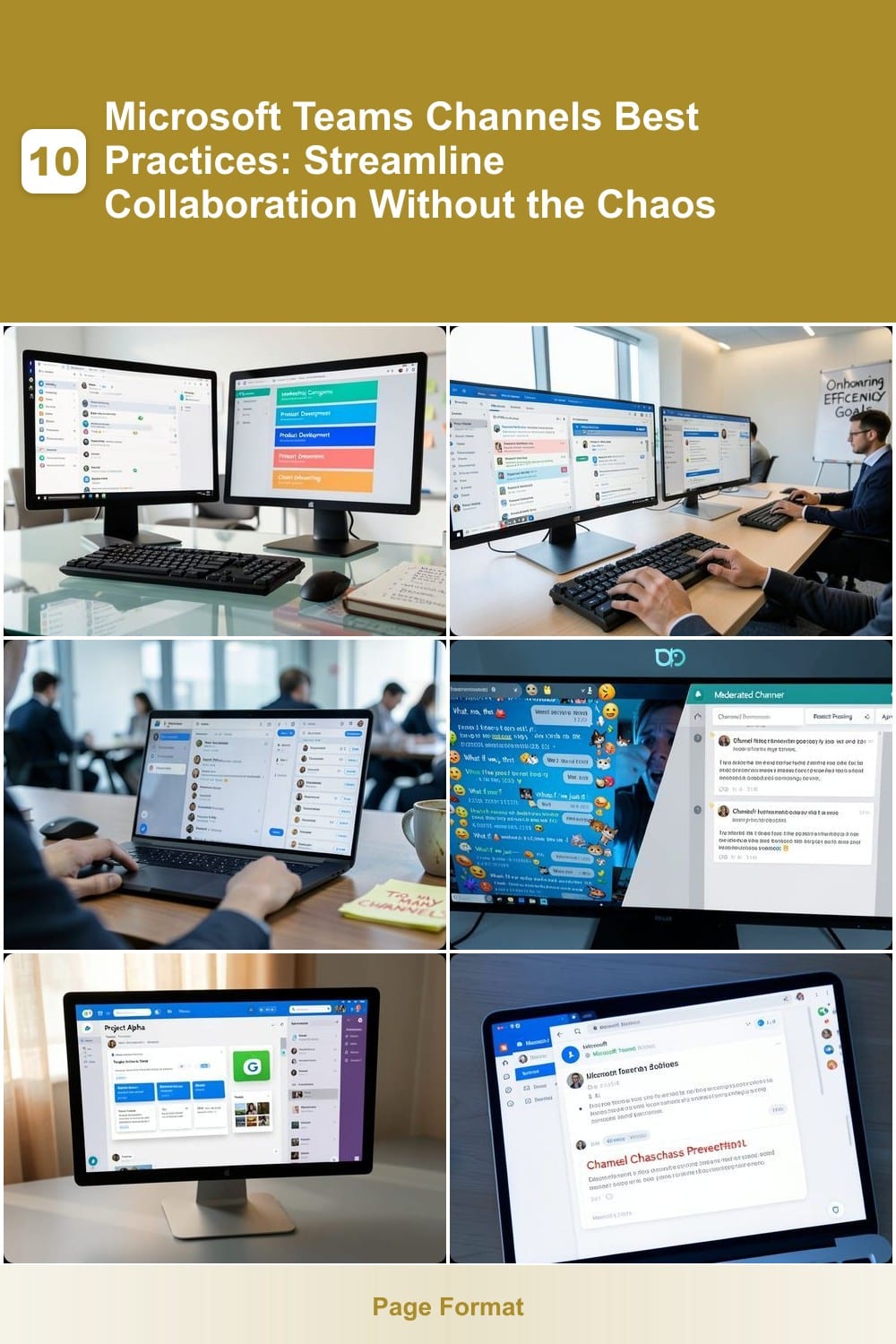
Tired of scrolling through a Microsoft Teams channel list filled with department-specific noise? Instead of organizing by teams (e.g., "Marketing," "Engineering"), try function-based channels like "Marketing Campaigns" or "Product Development." This approach cuts through the clutter by grouping discussions around shared goals—not just siloed departments.
For example, a "Launch Planning" channel might include stakeholders from product, marketing, and support—all focused on the same outcome. This reduces cross-team noise and ensures relevant discussions stay where they belong. Microsoft Teams’ search and filtering tools work even better with this structure, letting team members quickly find channels tied to their specific roles or projects.
This strategy works best for cross-functional teams or agile workflows where collaboration spans departments. By aligning channels with outcomes, you’ll see faster decision-making and fewer missed updates. 💡
Use Standardized Channel Naming Conventions

Frustrated when new hires or contractors waste time hunting for the right Teams channel? Standardized naming conventions turn chaos into clarity—think PROJ-2024-Q1-Live instead of vague labels like "Project Updates." This simple fix prevents duplicate channels and makes onboarding effortless.
Use consistent prefixes (e.g., DEV-, MKT-, HR-) to categorize by team or project, followed by a date or phase (e.g., PROJ-2024-Q2). Add suffixes like -General or -Archive to further refine purpose. Microsoft Teams’ search function works best with this structure—try searching "PROJ-2024" and watch relevant channels surface instantly.
This works best for growing teams or cross-department projects where multiple stakeholders join and leave. A standardized system ensures everyone—from interns to executives—finds what they need without asking "Where’s the latest version?" 💡
Limit Channels to Essential Topics Only

Ever found yourself paralyzed by choice when scrolling through a Microsoft Teams channel list with 20+ tabs? The solution isn’t more channels—it’s fewer, sharper ones. Research shows teams with 5-7 focused channels experience 30% faster navigation and 20% fewer missed messages due to reduced overwhelm.
Start by auditing your channels: if a topic doesn’t directly tie to a core project (e.g., "Website Redesign" or "Q3 Sales Goals"), it’s likely clutter. Use the "one channel per topic" rule—combine related discussions (e.g., merge "Feedback" and "Brainstorming" into "Product Development") and archive the rest. Pro tip: Name channels with action-oriented verbs like "Launch Planning" instead of vague terms like "Updates."
This approach works best for remote teams or departments juggling multiple projects—like dev teams managing sprints or marketing coordinating campaigns. Less scrolling means more focus on what matters. ✨
Enable Channel Moderation for High-Volume Teams
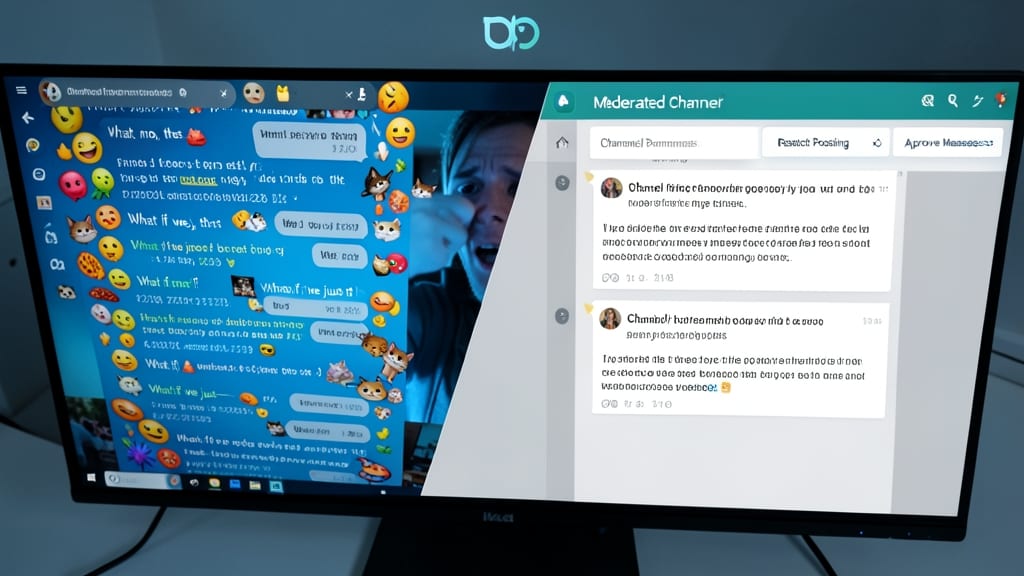
When your team’s Microsoft Teams channel explodes with off-topic chatter or random brainstorms, productivity takes a nosedive. The solution? Channel moderation—a built-in feature that lets you restrict posting to team owners or designated moderators only, keeping discussions focused and professional.
To enable it, navigate to Channel Settings > Moderation and toggle "Only owners can post" (or assign specific moderators). This instantly cuts down on noise while ensuring critical updates still get shared. For example, a product development team might restrict posting to leads and senior devs, guaranteeing technical discussions stay on track. The feature also works for client-facing channels, where controlled communication maintains brand consistency.
Ideal for teams juggling high-volume collaboration—like marketing sprints or crisis response groups—moderation transforms chaotic channels into structured hubs. Give it a try and watch focus (and efficiency) soar! ✨
Leverage Tabs for Centralized Resource Hubs
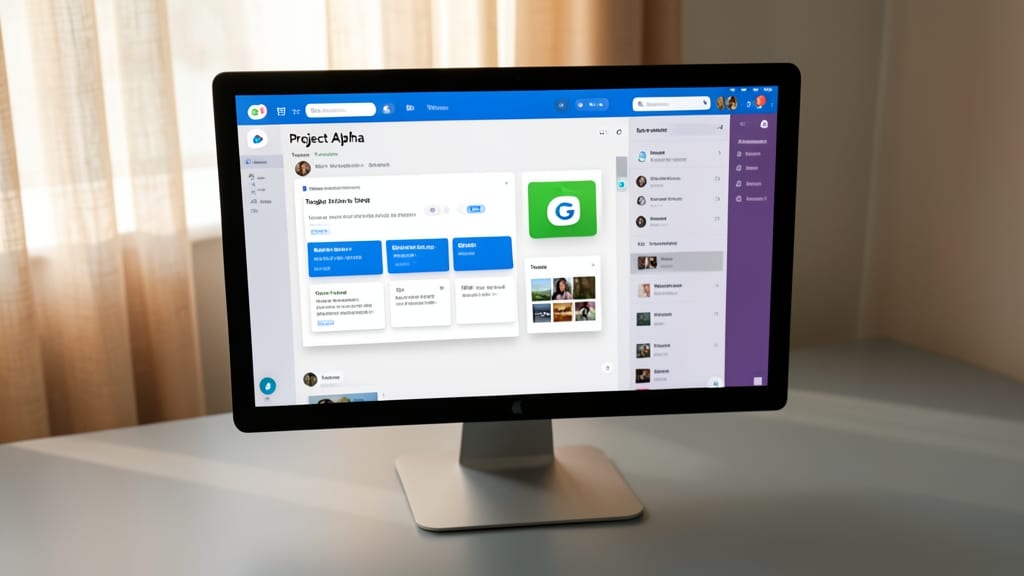
Tired of bouncing between apps like Trello, Google Drive, and Notion while working in Teams? The Tabs feature turns your channels into a unified workspace by embedding everything you need in one place.
Add files, links, and third-party apps (like Trello boards or Google Docs) directly to your channel tabs—no more tab-switching chaos. For example, pin your project timeline in Trello alongside meeting notes in OneNote, all visible without leaving Teams. The best part? You can organize tabs into groups (e.g., "Project Tools" or "Reference Materials") for instant access.
This is a game-changer for remote teams, project managers, and developers juggling multiple tools. Centralize your workflow and save hours of context-switching every day. ✨
Set Clear Channel Descriptions and Guidelines
A pinned post with clear guidelines isn’t just a nice-to-have—it’s your first line of defense against channel chaos. Teams often miss critical context when jumping into discussions, and without explicit rules, channels can devolve into noisy, unfocused spaces. A well-structured pinned post acts as a living manual, ensuring every team member knows the channel’s purpose, who owns it, and what’s (and isn’t) allowed.
Start by defining the channel’s core purpose (e.g., "For urgent IT support requests only") and assign an owner to keep discussions on track. Add posting rules like "No off-topic chatter" or "Tag relevant team members" to streamline communication. Microsoft Teams lets you pin posts at the top of any channel, making these guidelines visible the moment someone joins. For extra clarity, include examples of approved vs. disapproved messages—this reduces guesswork and keeps the tone professional. ⚡
This approach works best for high-traffic channels like support hubs, project updates, or cross-team collaborations where multiple stakeholders participate. By setting expectations upfront, you’ll cut down on repetitive questions, off-topic threads, and the frustration of sifting through irrelevant posts. 💡
Use Threads for Side Conversations

Ever scrolled through a Teams channel only to find the main discussion hijacked by unrelated side chats? Threads are your secret weapon—keeping the primary conversation intact while letting side topics breathe.
When you hit “Reply in thread”, you create a contained space for off-topic but relevant discussions (like brainstorming alternatives or troubleshooting details). The best part? Everyone gets @mentions and notifications only for the thread they’re following, so no one’s overwhelmed. Plus, threads auto-collapse, so your main feed stays clean—no more hunting for the original message buried under replies. ⚡
This works best for project teams juggling multiple angles (e.g., devs discussing a bug fix while designers weigh UI tweaks) or support channels where users ask follow-up questions. Start threading today, and watch your channels go from chaotic to crystal clear! 💡
Archive Inactive Channels Regularly
Ever felt like your Teams channels list is growing like an unchecked email inbox? Archiving inactive channels is the secret weapon to keep your workspace tidy while keeping critical project history intact—no data loss, just cleaner navigation.
Microsoft Teams makes archiving effortless: simply right-click a channel, select Archive, and it disappears from the main list but stays searchable. This works perfectly for completed projects or seasonal initiatives (think holiday campaigns or quarterly reviews). The best part? You can always unarchive if needed—no permanent deletion required. Plus, archived channels retain all files, messages, and tabs for future reference.
This is especially useful for project managers or team leads juggling multiple initiatives. A quick monthly cleanup session keeps your active channels visible while ensuring nothing important gets lost in the shuffle. ✨
Assign Owners for Accountability

Ever noticed how some Teams channels become digital graveyards—silent, outdated, and forgotten? Assigning a channel owner is the secret weapon to keep discussions lively and resources current. This single step transforms passive spaces into active hubs of collaboration.
Start by designating a team member (or small group) as the owner in channel settings. Their role? Monitor activity, update pinned guidelines, and archive outdated content before it clutters the workspace. For example, the owner of a #Product-Launch channel can ensure deadlines stay visible and old meeting notes get archived—keeping the channel focused on what matters. Microsoft Teams even lets you assign multiple owners for shared responsibility.
This works best for project-based channels or ongoing teams where someone needs to "steward" the conversation. Teams with rotating owners (e.g., quarterly handoffs) can keep accountability fresh without overloading any single person. 💪
Train Teams on Channel Etiquette

Even with the best-organized channels, teams still struggle with @mention spam, file naming chaos, and off-topic replies—all of which derail productivity. A 15-minute etiquette training session can turn these common pitfalls into smooth collaboration habits.
Start by covering three key rules: Use @here sparingly (only for urgent, team-wide alerts), name files with dates and projects (e.g., "Q2-ReportFinal051524.docx"), and pin a "Channel Guidelines" post with examples of what belongs in threads vs. the main conversation. Microsoft’s built-in Teams training templates make this easy—just customize with your team’s specific pain points.
This works best for remote teams or cross-department groups where communication norms might vary. A quick refresher every quarter keeps everyone aligned and reduces the noise that clutters channels. ✨