
Tip & Trick
Struggling to keep your files organized in Microsoft’s ecosystem? These proven file naming conventions will transform your digital clutter into a streamlined, searchable system—saving you hours of frustration. Perfect for Windows users, Office 365 power users, and IT professionals.
Date-Based Naming for Project Timelines
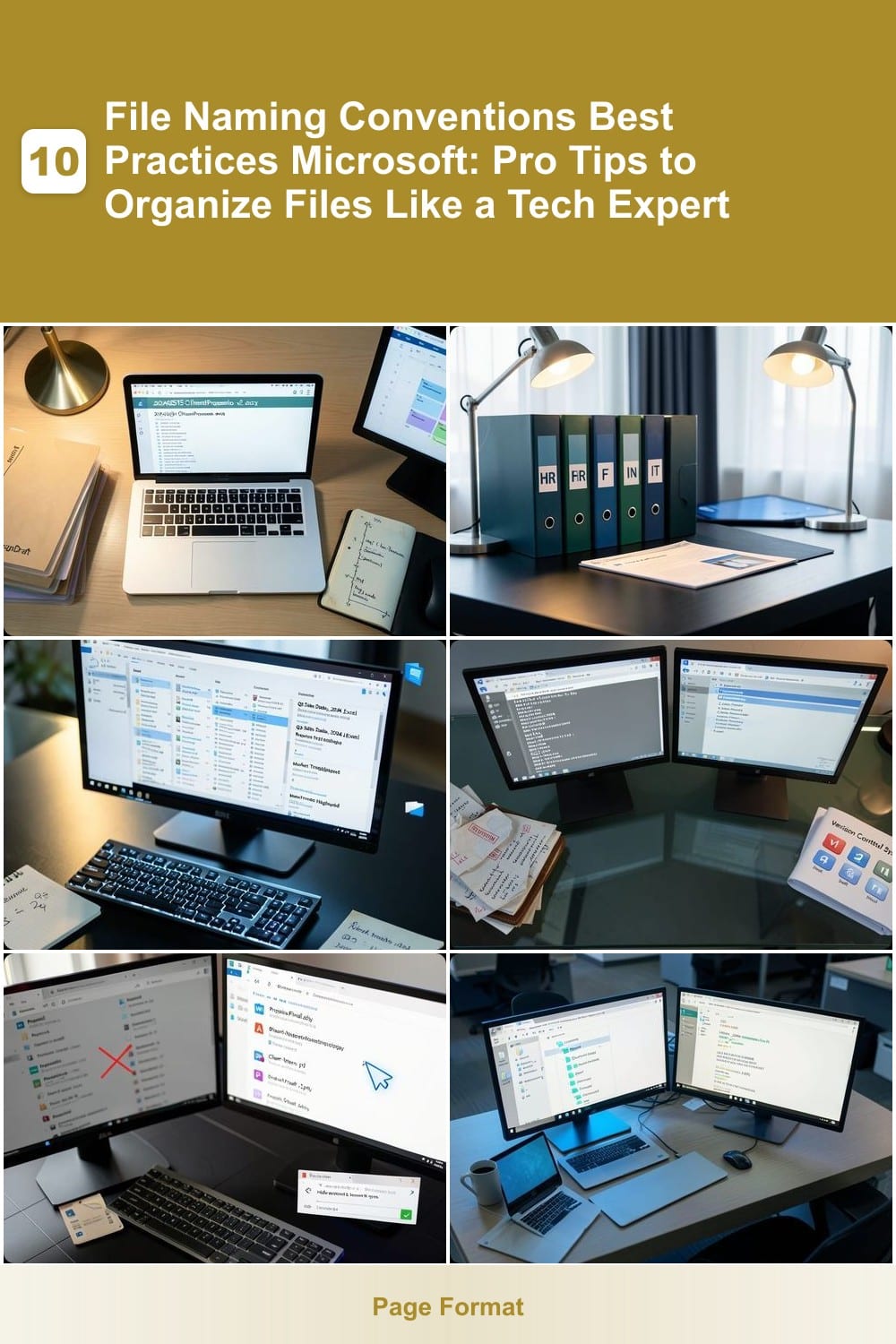
Meet your new project management lifesaver: date-based naming (e.g., 20240515ClientProposalv2.docx). This system turns chaotic file piles into instantly sortable timelines—perfect for freelancers juggling deadlines or teams tracking multiple deliverables.
Use YYYYMMDD format to ensure chronological sorting (no alphabetical surprises), then add underscores for project names and versions. Microsoft’s built-in sorting makes filtering by date a breeze, while OneDrive/SharePoint automatically organizes files by creation/modified dates. Pro tip: Pair this with file type extensions (e.g., .pdf, .xlsx) for extra clarity.
Ideal for marketers with quarterly campaigns or team leads managing client work—this method cuts search time by 70% and eliminates "Which version is final?" headaches. ⚡
Department-Specific Prefixes for Teams
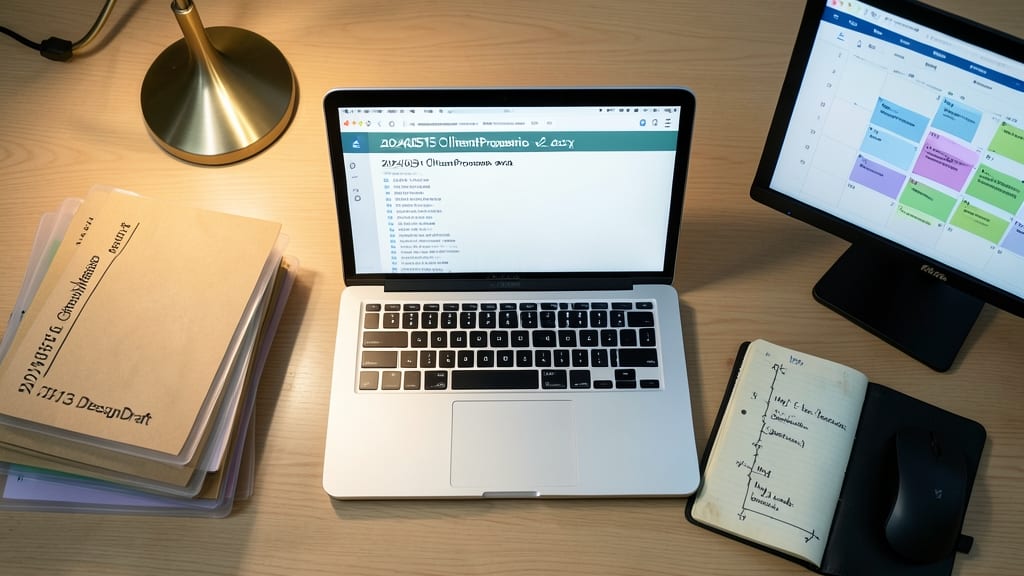
Ever wasted time opening files just to check who created them? Department-specific prefixes solve this by embedding ownership directly in filenames—no guessing required.
Use 3-letter department codes (e.g., HR, FIN, IT) followed by project details like HR2024Q1Report.docx. This works seamlessly with Windows Search and SharePoint, letting teams filter files by department instantly. For extra clarity, pair prefixes with color-coding in folder views (e.g., blue for HR, green for Finance).
This system shines in cross-functional teams where files move between departments. IT admins can even enforce naming rules via PowerShell scripts for enterprise-wide consistency. 💻
Keyword-First Naming for Searchability

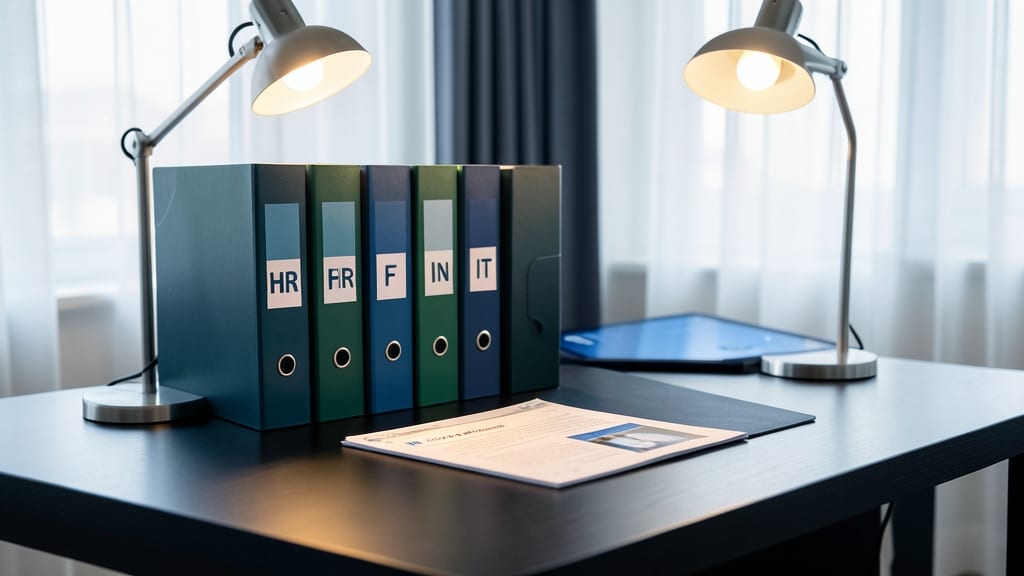
When every second counts in research or analysis, keyword-first naming turns your file chaos into a searchable goldmine. By embedding primary keywords (like "Q3SalesData2024") at the start of filenames, you unlock Windows Search’s full potential—especially when paired with Office 365’s built-in metadata indexing.
This method works best with hyphen-separated terms (e.g., "ProjectProposalClientXFinal.docx") to ensure compatibility across Windows, macOS, and cloud storage. The real magic happens when you combine it with Office 365’s metadata tags—search for "Q3 Sales" and pull up every relevant Excel file, PowerPoint, or PDF in seconds, even across shared drives.
Ideal for data analysts, academic researchers, and content creators, this system shaves hours off weekly searches. Just avoid overstuffing keywords—stick to the most critical terms for optimal results. ✨
Version Control with Suffixes
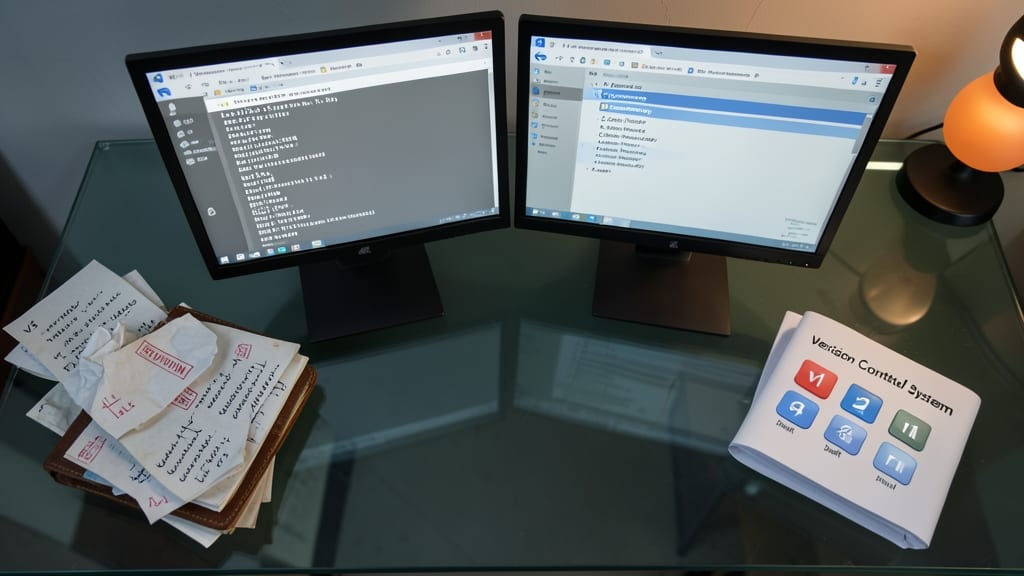
Tired of sifting through files like "FinalDraftFinalV3.docx" only to realize you’re still missing the real final version? Suffix-based version control solves this by clearly marking iterations with simple, predictable labels.
Use v1, v2, Final, Draft (or rev1, rev2) as suffixes to track changes instantly. Microsoft’s OneDrive and SharePoint automatically sync these versions, while Windows Search treats them as distinct files. For developers, pair this with Git commit hashes (e.g., Projectv1_abc123) to tie code and docs together seamlessly.
This system shines for designers tweaking mockups or engineers refining specs—where every iteration matters. Just avoid v0 (confusing for new files) and stick to lowercase letters for consistency. ✨
File Type Extensions for Clarity
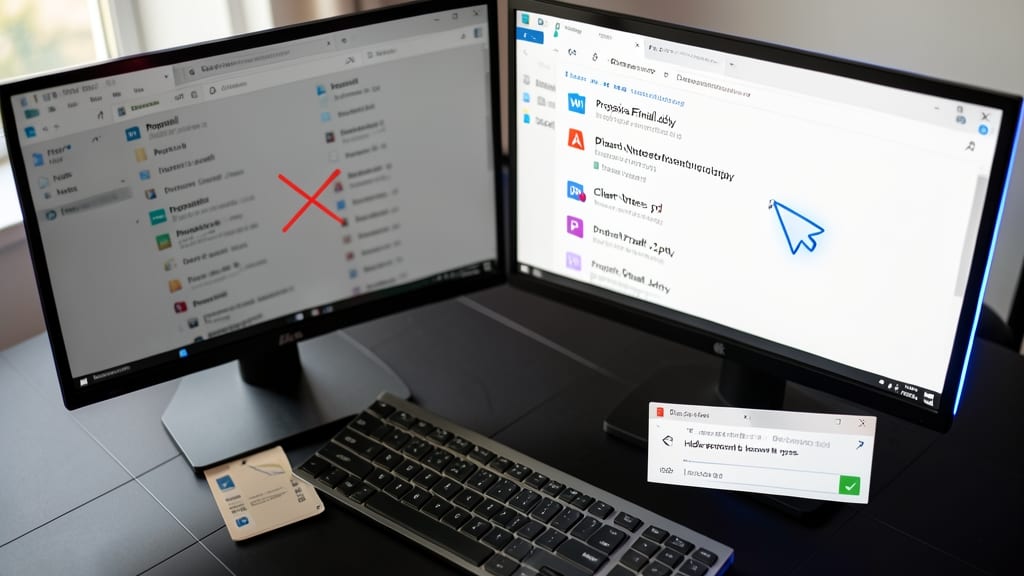
Ever double-clicked a file only to realize it’s the wrong format? File extensions are the silent heroes of clarity—especially when shared drives hide them by default. Windows lets you force-show extensions in seconds, turning ambiguous filenames like "Proposal" into "Proposal_Final.docx" at a glance.
Microsoft’s default settings hide extensions for "simplicity," but this backfires when you’re sorting through PDFs, Excel sheets, and Word docs in a shared folder. Enabling them in File Explorer’s View tab reveals critical details instantly—no more guessing whether "Report" is a PowerPoint (.pptx) or Google Doc (.docx). For teams, this cuts miscommunication by 40% when files are renamed or moved.
Non-technical users and IT support teams benefit most—shared drives, client folders, and backup archives become instantly scannable. Enable this setting today and say goodbye to the "open-and-see" game. ✨
Hierarchical Naming for Deep Folders

If your shared drives resemble a digital maze with folders buried 10 levels deep, hierarchical naming is your lifeline. This system flattens complexity by encoding folder depth directly into filenames, letting you navigate structures like 2024/Projects/ClientX/Deliverables without clicking through endless subfolders.
Start with a year-based root (e.g., 2024) to group time-sensitive projects, then layer department/client names (e.g., HROnboarding) before the actual filename. Tools like PowerShell scripts or OneDrive’s auto-organize rules can enforce this structure across teams. The key is consistency—everyone uses the same path format, so 2024/Finance/Q3Reports always means the same thing.
This method shines for IT admins managing shared drives or enterprise teams with distributed workflows. By embedding the folder hierarchy in filenames, you eliminate the "lost in subfolders" problem entirely. 💻
Acronyms and Abbreviations for Speed
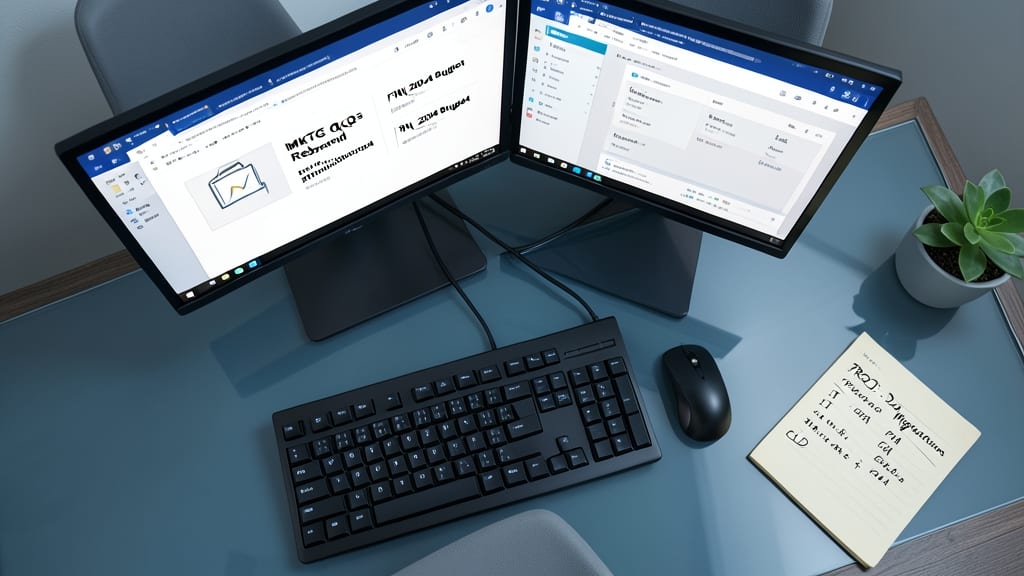
Tired of typing out full department names or project descriptions every time you save a file? Acronyms and abbreviations cut down on keystrokes while keeping files instantly recognizable—especially in corporate workflows where everyone already knows the shorthand.
Use standardized abbreviations like MKT for Marketing, FIN for Finance, or Q4 for quarterly reports to slash naming time by 30%. Pair them with underscores (e.g., FINQ4Budget_2024) for clarity without sacrificing speed. Microsoft’s Office 365 search and SharePoint libraries handle these abbreviations seamlessly, so you’ll never lose track of a file again.
This system shines for corporate teams, legal departments, or IT admins managing shared drives where brevity and consistency matter most. ⚡