
Tip & Trick
Microsoft OneNote 2013 is a powerhouse for organization, but many users miss its most powerful features. These seven hidden tips and tricks will transform how you capture, organize, and retrieve information—boosting your productivity without the learning curve.
Quick Capture with OneNote's Clipper Tool

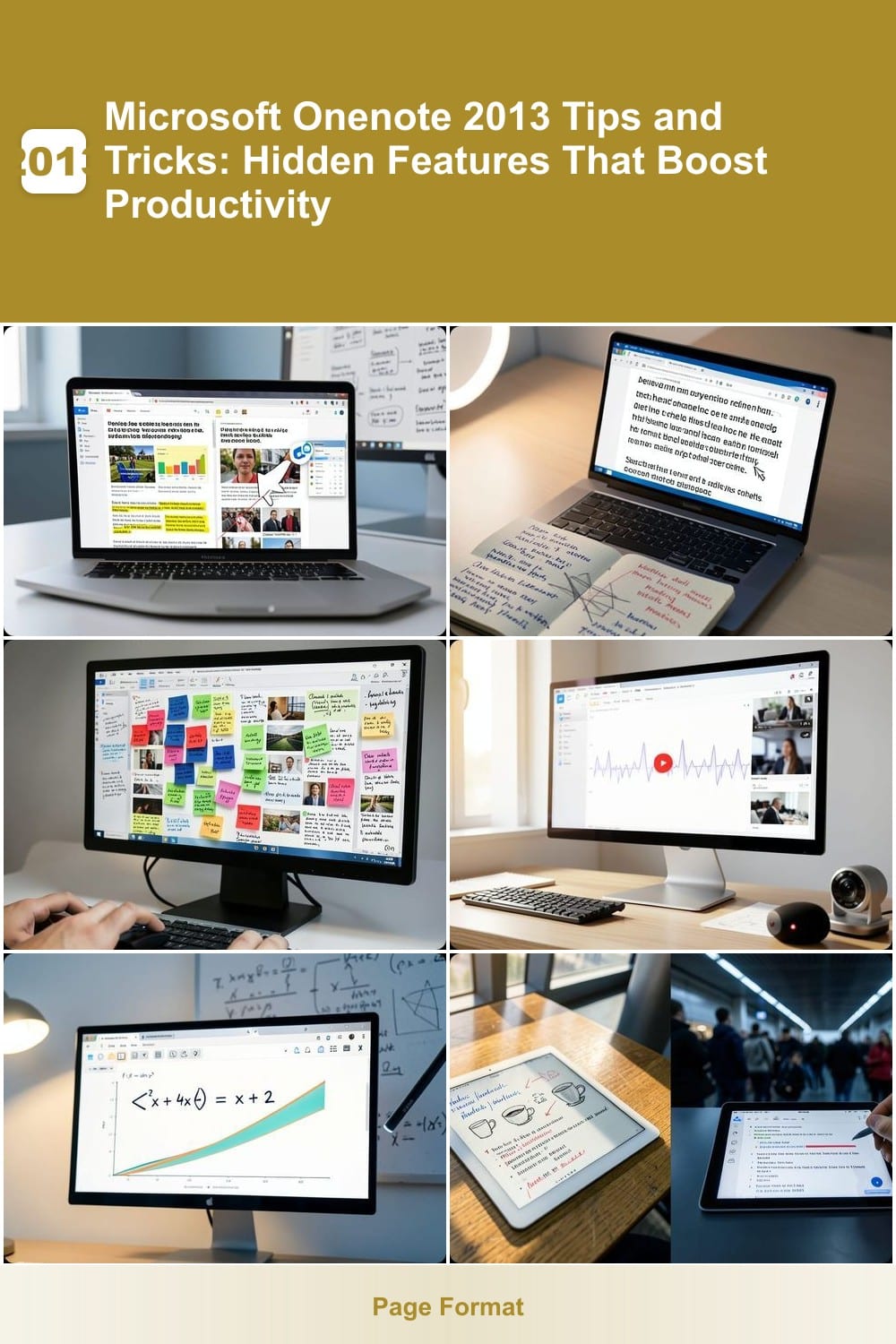
Tired of losing valuable research or important web content to browser tabs? OneNote 2013’s Clipper Tool lets you save entire web pages, screenshots, or specific sections directly into your notebook—without ever leaving your browser. This browser extension (available for Chrome, Firefox, and Edge) transforms your workflow by capturing full articles, PDFs, or even just highlighted text in seconds.
To use it, simply install the OneNote Web Clipper from the Microsoft Store, then click the extension icon while browsing. Choose to save the full page, selection, or screenshot, and OneNote instantly organizes it into your chosen notebook. The tool even preserves formatting, images, and hyperlinks, so your saved content looks exactly as it did online. Researchers, students, and quick-reference collectors will love how this eliminates the need for bookmarks or separate files.
This is the perfect tool for archiving articles, saving product specs, or collecting inspiration—all while keeping everything searchable and organized in one place. Give it a try next time you stumble upon something worth saving. 💻
Handwriting Recognition for Digital Notes
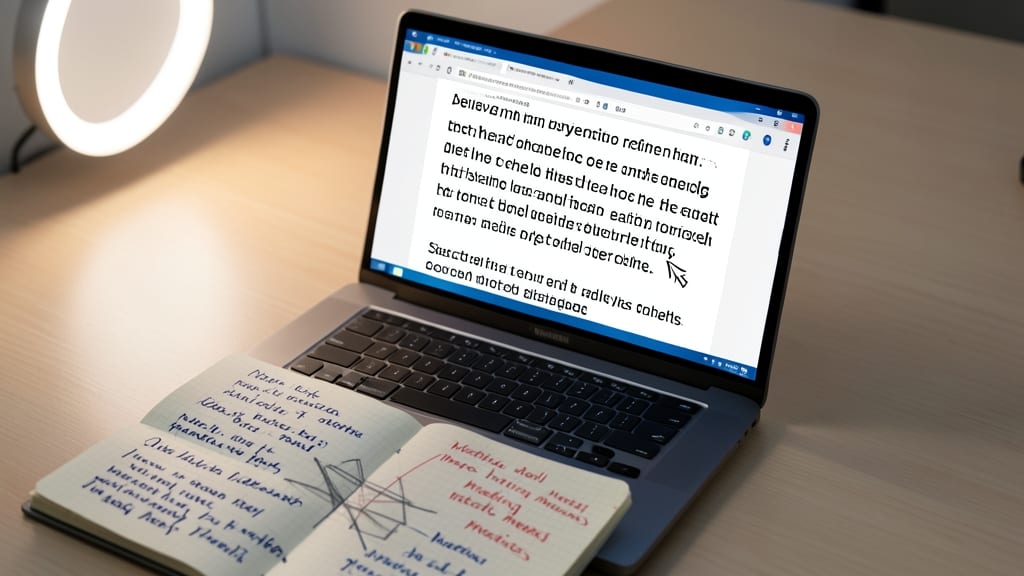
Ditch the frustration of illegible scrawls—OneNote 2013’s handwriting recognition turns your sketches into searchable, editable text with minimal effort. Whether jotting down lecture notes, brainstorming diagrams, or scribbling meeting minutes, the app converts your handwriting into clean, selectable text using built-in OCR (Optical Character Recognition). No need for third-party apps or manual retyping.
Simply write as you normally would with a stylus or mouse, then right-click your handwritten text and select "Copy Text from Picture" (or use the Draw Tab → Ink to Text tool). The feature handles printed text too, making it perfect for digitizing old notes or scanned documents. For extra organization, OneNote even extracts keywords from your handwritten content, letting you search for specific terms later.
This is a game-changer for students transcribing lectures, professionals documenting client calls, or creatives sketching ideas—all while keeping your notes fully editable and searchable. Try it next time you’re doodling solutions instead of typing them. ✨
Tagging System for Instant Note Organization

Drowning in a sea of notes without a clear system? OneNote 2013’s tagging system turns chaos into clarity with color-coded labels that act like digital sticky notes—no folders required. Assign red for urgent tasks, blue for research, or green for personal ideas, and instantly filter your entire notebook with a single click.
Create custom tags in the Tag Picker (View → Tags) and apply them to any text, image, or drawing. The magic happens when you use Search Tags (Home → Search) to pull up only the notes you’ve labeled—whether you’re tracking a project deadline or cross-referencing meeting minutes. Pro tip: Combine tags like “@HighPriority” + “#Marketing” for layered organization.
This is your secret weapon if you juggle multiple projects, switch between work and personal notes, or simply hate digging through pages. Try it with your next brainstorm session—your future self will thank you. ✨
Audio and Video Recording Directly in Notes
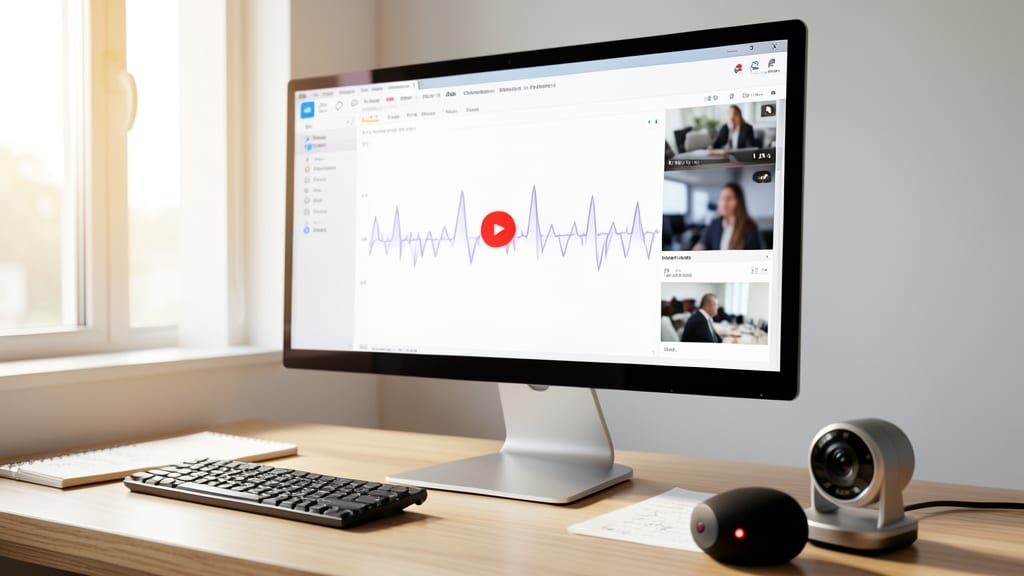
Tired of losing important verbal insights or spontaneous ideas? OneNote 2013’s built-in audio and video recorder lets you capture lectures, brainstorming sessions, or interviews directly within your notes—no extra apps needed.
With just a click, record high-quality audio (up to 44.1kHz) or video (VGA resolution) and embed it alongside your typed or handwritten notes. The clips play back inline, so you can reference them later without digging through separate files. Perfect for journalists, educators, or anyone who needs to preserve unscripted discussions.
Trainers and interviewers will love this feature for documenting sessions—simply tag the recording with keywords like "client feedback" or "project brainstorm" to organize it instantly. ⚡
Math and Equation Tools for Problem Solving

Struggling to balance equations or sketch technical diagrams? OneNote 2013’s Math Tools turn your notes into a digital whiteboard for problem-solving. With the Equation Editor, you can write complex formulas using natural notation—no LaTeX required—while the Graphing Tool lets you plot functions with a few clicks.
Simply draw brackets, fractions, or integrals with your mouse or stylus, and OneNote converts them into precise, editable equations. Need a quick visualization? The Graph Paper Tool overlays grid lines for technical sketches, and you can even annotate diagrams with freehand shapes or text. Best of all, these tools sync with your notebook, so your work stays organized and searchable.
Engineers, students, or anyone drafting technical documents will love how OneNote eliminates the need for separate math software. Just sketch, solve, and refine—all in one place. ✨
Offline Access and Automatic Sync
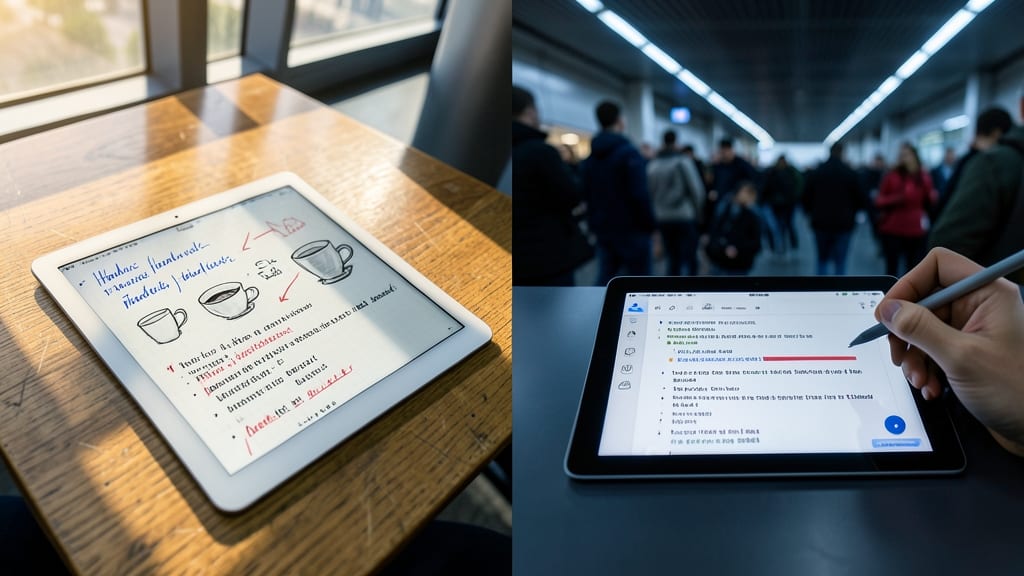
Forget the frustration of lost notes when Wi-Fi drops—OneNote 2013’s offline mode lets you work seamlessly in the field, on planes, or anywhere with spotty connections. Simply open your notebook, and all your notes, drawings, and edits stay accessible until you reconnect.
When you’re back online, automatic sync kicks in—no manual saving required. The app detects your connection and pushes all changes to the cloud, keeping your notes in perfect harmony across devices. This works even with large notebooks (up to 2GB per section) without lag, thanks to Microsoft’s efficient sync engine.
Perfect for field researchers, remote workers, or travelers, this feature ensures no idea slips away. Just enable offline mode in File > Account > Sync Settings, and you’re ready for uninterrupted productivity. ✨
Templates for Standardized Note-Taking
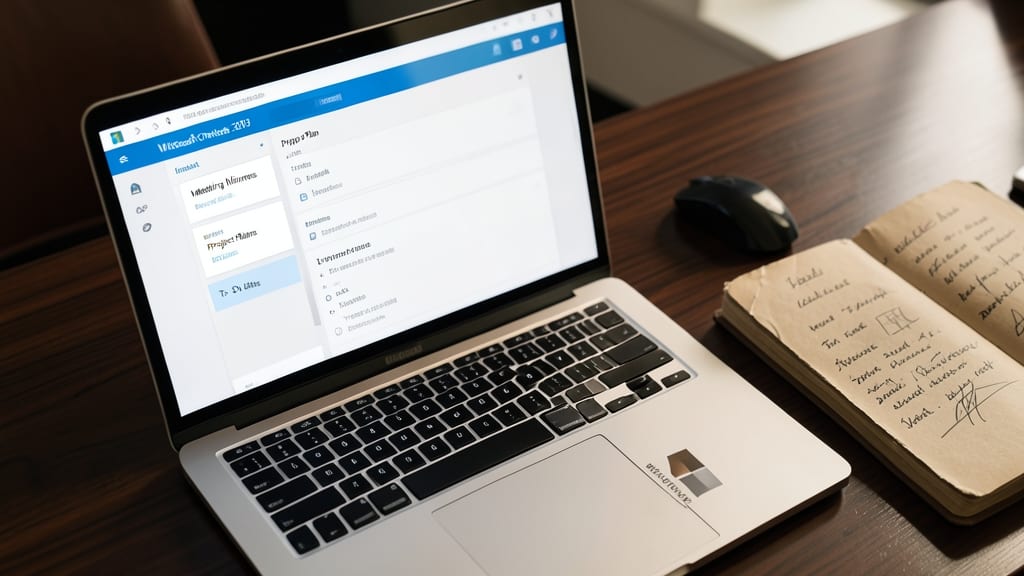
Tired of reinventing the wheel every time you take notes for a meeting or project? OneNote 2013’s pre-built templates—like Meeting Minutes, Project Plans, and To-Do Lists—cut down your setup time by 70%. Just select a template from the Insert tab and customize it with your team’s branding or workflow.
These templates include structured sections (e.g., agenda items, action steps, deadlines) and to ensure nothing slips through the cracks. For example, the Meeting Minutes template auto-formats timestamps, speaker notes, and follow-up tasks—perfect for keeping teams aligned. You can even save your own templates for recurring workflows, like client onboarding or weekly standups.
Whether you’re a project manager standardizing documentation or a student tracking assignments, these templates enforce consistency while saving hours of formatting. ⚡