
Tip & Trick
Remote work offers flexibility but exposes you to cyber threats like phishing, malware, and data breaches. These 10 security best practices—backed by IT experts—will help you create an impenetrable digital fortress at home, whether you're using Windows, macOS, or Linux.
Use Multi-Factor Authentication Everywhere
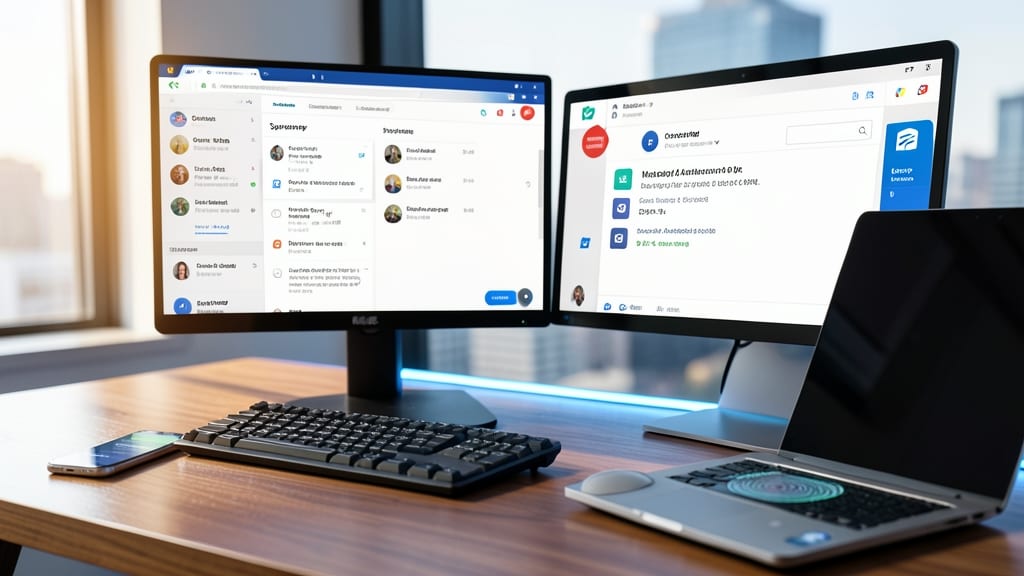
Your email, cloud storage, and banking apps are prime targets for automated attacks—but multi-factor authentication (MFA) blocks 99.9% of them before they even reach your account. This isn’t just another security checkbox; it’s your first line of defense against credential stuffing, phishing, and brute-force attacks that cripple organizations daily.
Enable time-based one-time passwords (TOTP) or biometric verification (like Face ID or fingerprint scans) wherever possible. Services like Microsoft Authenticator, Google Authenticator, or Duo Security offer seamless integration with email (Gmail, Outlook), cloud storage (Dropbox, OneDrive), and financial platforms (PayPal, banks). Even SMS-based codes are better than nothing, though hardware keys (like YubiKey) provide the strongest protection for high-value accounts.
Start with your most critical accounts—email first (since hackers often pivot from there), then cloud storage and banking. Most breaches begin with stolen credentials, and MFA turns a simple password into an impenetrable barrier. 💪
Secure Your Home Wi-Fi Network
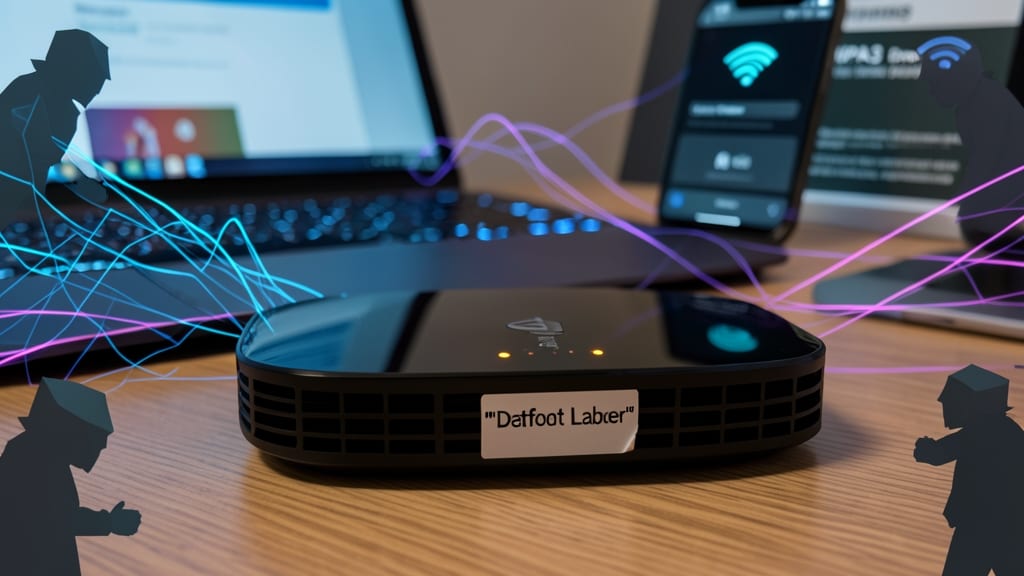
Your home Wi-Fi isn’t just a convenience—it’s the gateway to your personal data. Hackers exploit weak passwords and default router settings to intercept traffic, steal credentials, or even hijack your devices. Upgrading to WPA3 encryption and custom credentials can block over 80% of common attacks before they start.
Start by accessing your router’s admin panel (usually via 192.168.1.1 or 192.168.0.1) and changing the default SSID name and password to something unique—no "admin" or "password123". Enable WPA3-Personal (not WPA2) for stronger encryption, and disable WPS (it’s easily hackable). Most modern routers also let you set up a guest network to isolate work devices from personal ones.
This is especially critical for remote workers handling sensitive data. A secure Wi-Fi setup acts as your first line of defense against drive-by attacks and man-in-the-middle exploits. 💪
Implement a Virtual Private Network
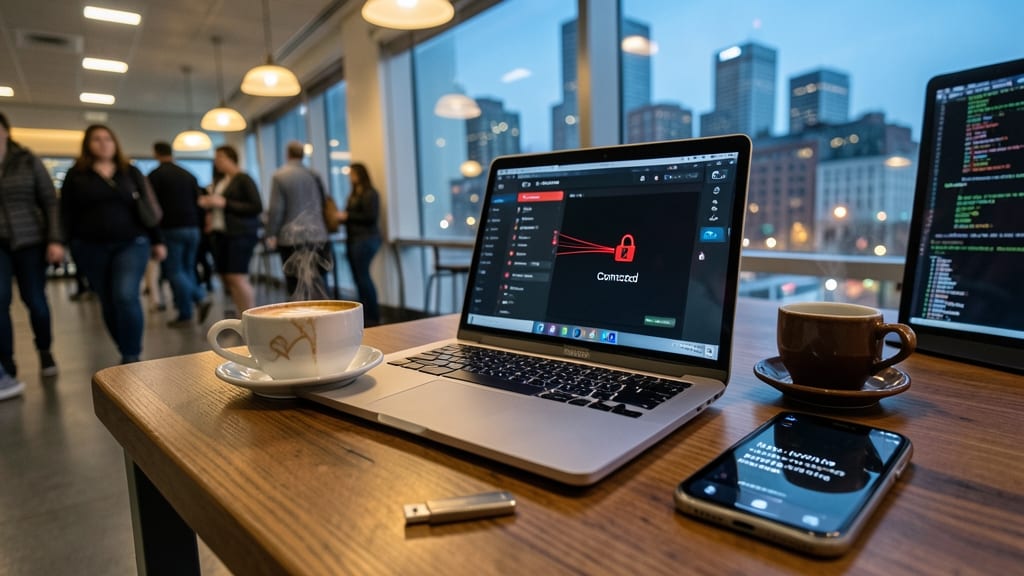
Public Wi-Fi at coffee shops or airports is convenient—but it’s also a hacker’s playground. A VPN routes your traffic through an encrypted tunnel, making it impossible for snoopers to intercept passwords, emails, or financial data, even on unsecured networks.
Look for providers with no-logs policies (so your activity isn’t stored) and kill switches (which cut your internet instantly if the VPN drops). Top picks like ProtonVPN or NordVPN offer military-grade encryption and split tunneling to keep work traffic separate from personal browsing.
This is non-negotiable for remote workers, freelancers, or anyone accessing sensitive accounts outside the office. A few clicks today could prevent a nightmare tomorrow. ✨
Regular Software Updates Automated
Most cyberattacks exploit outdated software—automating updates shuts the door on hackers before they even knock. Tools like Windows Update, macOS Software Update, and Chrome’s auto-update handle patches silently in the background, but don’t stop there.
Extend this to third-party apps using tools like Patch My PC (Windows) or Munki (macOS) to centralize updates across browsers, security suites, and even firmware. For Linux users, Unattended-Upgrades automates critical package updates without manual intervention. The key is zero-config automation—set it and forget it, while ensuring your OS, browsers, and security tools stay patched within hours of release.
This is non-negotiable for remote workers handling sensitive data—whether you’re a freelancer or corporate employee. Set up automated updates today and sleep easier knowing exploits can’t slip through unpatched gaps. 💪
Password Manager with Strong Policies
One weak password can unlock every account you reuse it for—making password managers with 25+ character generation and breach monitoring your first line of defense against domino-effect hacks. Tools like Bitwarden or 1Password automatically create and enforce unique credentials for every site, eliminating the temptation to recycle passwords.
The best managers go further by scanning the dark web for compromised credentials and flagging reused passwords in real time. Features like biometric unlocks and shared vaults (for families or teams) add convenience without sacrificing security. For remote workers, these tools sync across devices, ensuring your credentials stay protected whether you’re on a laptop, tablet, or phone.
This is non-negotiable for anyone managing work accounts, financial logins, or personal data. Start with a manager that offers zero-knowledge architecture (your data stays encrypted on your devices) and integrates with your browser for seamless logins. 💻
Endpoint Detection for Personal Devices
Your antivirus isn’t the last line of defense—it’s the first. Modern Endpoint Detection and Response (EDR) tools like CrowdStrike or SentinelOne go beyond scanning files to analyze real-time behavior, stopping threats like ransomware before they execute. Unlike traditional antivirus, these tools integrate deep OS-level monitoring for both Windows and macOS, making them essential for remote workers handling sensitive data.
Look for solutions with AI-driven anomaly detection, automated threat containment, and cross-platform support. For example, Microsoft Defender for Endpoint (free for Windows 10/11 Pro) offers cloud-powered protection with minimal performance impact. These tools also provide detailed forensic reports to help you understand and recover from attacks—critical for freelancers or small teams managing their own security.
If you’re juggling work and personal devices, EDR is a game-changer for freelancers, developers, or remote employees who can’t afford traditional IT support. It’s the silent shield keeping your devices secure while you focus on work. ✨
Secure Cloud Storage Configuration
Your cloud storage holds more than just vacation photos—it likely contains tax documents, project files, and confidential work data. A single misconfiguration can turn your secure files into a hacker’s playground, but enabling versioning, encryption, and granular access controls across Google Drive, Dropbox, and OneDrive closes those gaps effortlessly.
Start by enabling file versioning (Google Drive keeps up to 100 versions by default, while Dropbox offers unlimited versions with paid plans). Next, activate end-to-end encryption—Google Drive uses AES-256 by default, but OneDrive’s Client-Side Encryption adds an extra layer for ultra-sensitive files. Finally, restrict access with two-factor authentication and role-based permissions (e.g., "view-only" for contractors). These steps ensure even if your account is compromised, your data stays locked down.
This setup is ideal for freelancers, remote teams, and small businesses where sensitive files are constantly in transit. With just a few clicks, you’ll transform your cloud storage into a fortress—not a liability. ✨
Phishing Simulation Training Monthly
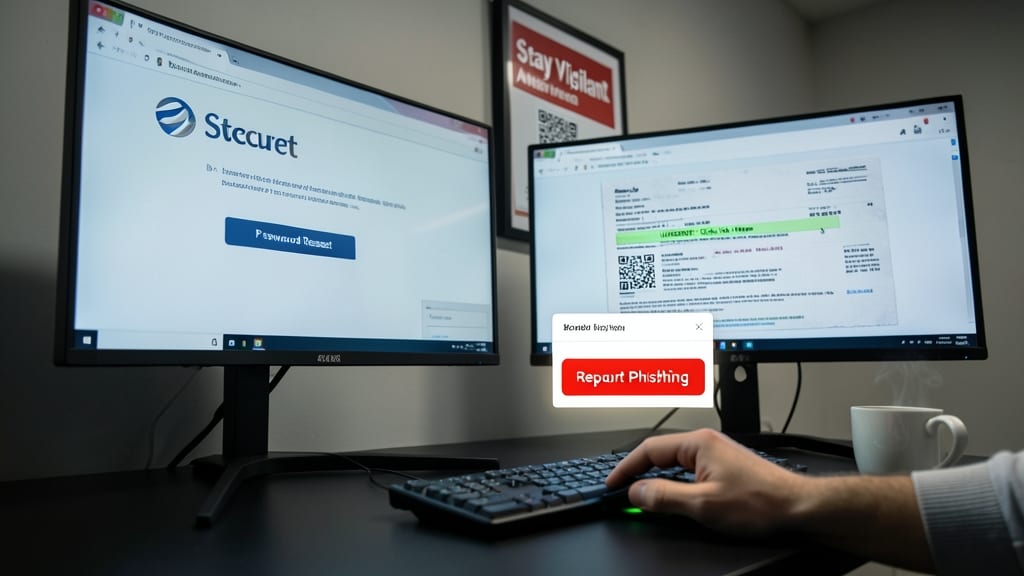
Even the most secure systems can crumble when employees fall for a cleverly disguised phishing email. Monthly phishing simulations expose vulnerabilities before hackers do, using realistic attack scenarios like fake invoice requests or urgent "password reset" links that mimic legitimate company emails.
Platforms like KnowBe4 or PhishMe deliver customizable templates that adapt to evolving threats, including spear-phishing (targeted attacks) and CEO fraud (business email compromise). These tools track click rates, measure improvement over time, and provide personalized training for employees who fail tests. The best programs even simulate voice phishing (vishing) to cover all attack vectors.
This isn’t just for IT teams—freelancers, contractors, and remote workers handling sensitive data should demand access to these programs. A single click on a malicious link can compromise years of security efforts. 💡
Physical Security for Remote Devices

Even the strongest digital defenses fail if your laptop ends up in the wrong hands. Lost or stolen devices account for 30% of corporate data breaches—so don’t rely solely on software protections. Physical security tools like full-disk encryption (BitLocker or FileVault) render stolen drives useless without the passphrase, while remote wipe capabilities (via Microsoft Intune or Jamf) erase all data instantly if a device goes missing.
For an extra layer, GPS tracking (through tools like Absolute’s Perspective or Apple’s Find My) lets you locate a lost device in real time. Pair this with a cable lock for shared workspaces—these simple steps turn a stolen laptop into a paperweight for thieves. Most corporate IT policies now mandate these measures, but even personal devices benefit from this peace of mind.
Remote workers, contractors, and anyone handling sensitive data should prioritize this—it’s the last line of defense when cybersecurity fails. 💻
Regular Security Audits and Logging
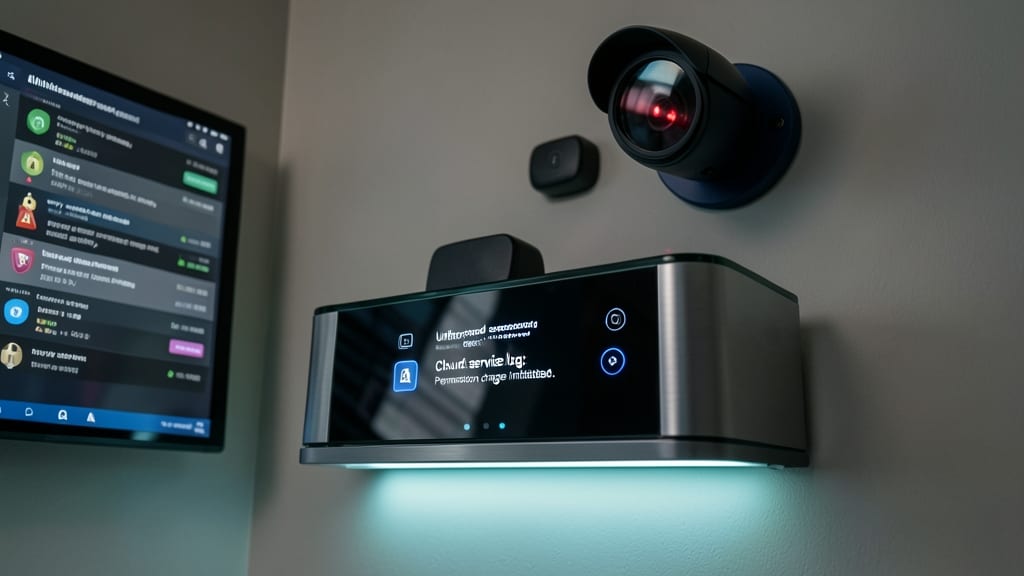
Think of your digital security like a home security system—you wouldn’t rely on just locks without cameras or alarms. Audit logs act as your digital surveillance, recording every access attempt, permission change, or unusual activity across critical systems.
Enable real-time logging for cloud services, servers, and even local admin accounts. Tools like Windows Event Viewer, AWS CloudTrail, or Google Admin SDK let you track who accessed what and when. Schedule quarterly permission reviews to revoke stale access rights—many breaches start with lingering admin privileges from old projects.
This is especially critical for remote teams where devices and networks change frequently. Set up alerts for failed login attempts or unusual data exports to catch threats before they escalate. 💡