
Tip & Trick
Microsoft Word is a powerhouse for productivity, but most users only scratch the surface. These seven hidden Microsoft 365 Word tips and tricks will transform how you create, edit, and collaborate—saving you hours weekly without learning complex shortcuts.
Quick Parts Gallery for Reusable Content Blocks
Say goodbye to manually typing the same disclaimers, legal clauses, or project templates every time you start a new document. The Quick Parts Gallery in Microsoft 365 Word lets you save and reuse custom text blocks—like signatures, boilerplate language, or entire project outlines—with just a few clicks.
To get started, highlight the text you want to save, then go to Insert > Quick Parts > Save Selection to Quick Parts Gallery. Name your snippet (e.g., "Client Disclaimer" or "Project Kickoff Template") and assign it a shortcut key for instant access. Later, insert it anywhere by typing your shortcut or navigating to Insert > Quick Parts > Document Property (for dynamic fields like dates) or AutoText. This feature even supports nested blocks, so you can build complex templates layer by layer.
Perfect for legal teams drafting contracts, HR professionals onboarding employees, or marketers sending client proposals—this tool cuts repetitive typing time by 80% and keeps your content consistent. ⚡
Track Changes with Comments for Collaborative Editing
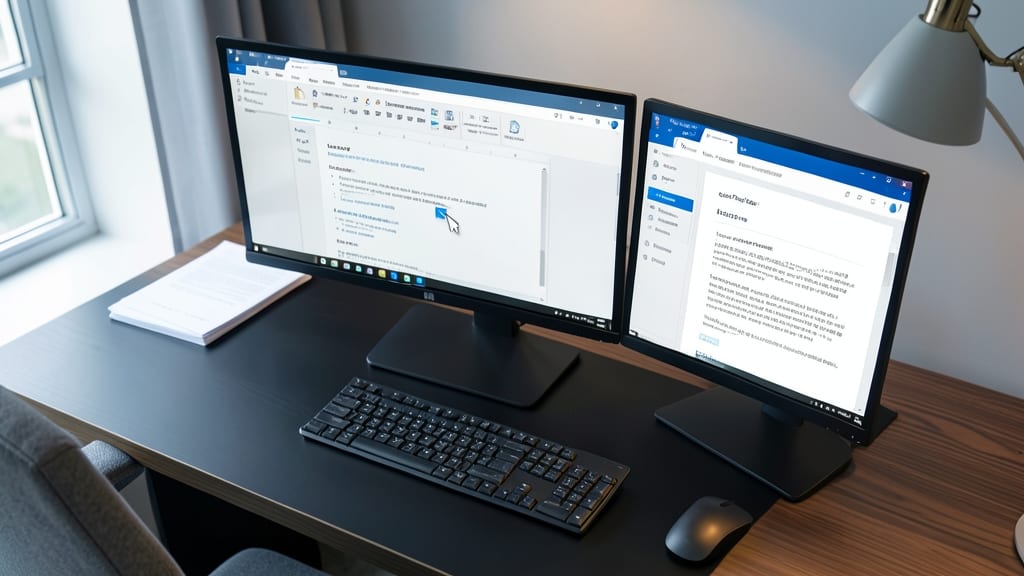
Tired of track changes that feel like a one-way street? Microsoft 365 Word’s Track Changes with Comments feature lets reviewers leave interactive feedback directly in the document—no more email ping-pong or buried notes in separate files.
Enable it by selecting text, then clicking Review > New Comment (or press Ctrl + Alt + M). Comments appear as yellow callouts tied to specific lines, while track changes (red/green) show edits. Reply directly to comments, @mention teammates, and even assign tasks to ensure nothing slips through the cracks. The feature syncs with SharePoint and OneDrive, so remote teams stay aligned in real time.
This is a collaboration game-changer for legal teams reviewing contracts, academics refining theses, or marketing teams polishing client proposals—where feedback needs to be visible, actionable, and organized in one place. 💡
One-Click Equation Editor for Math and Symbols
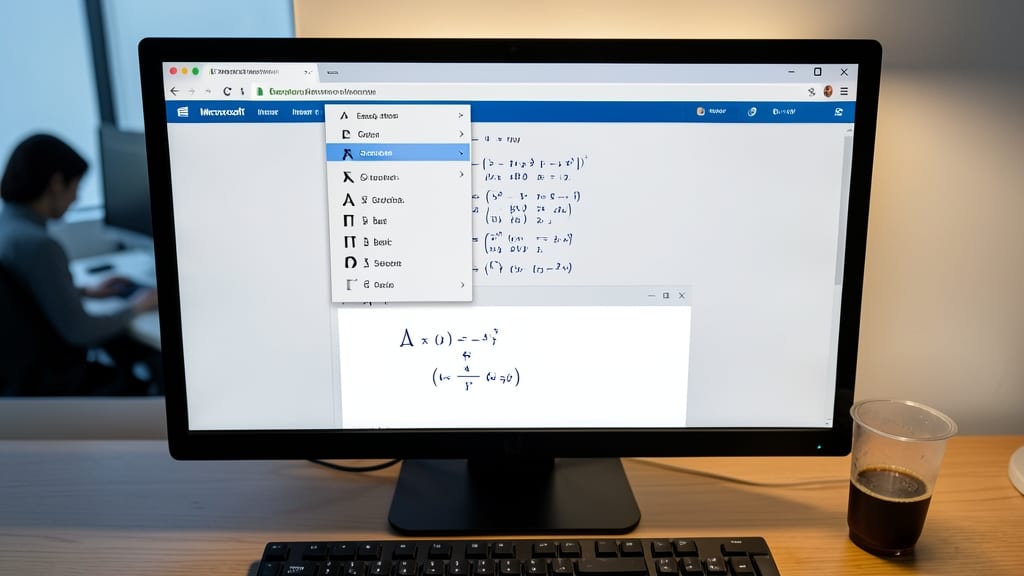
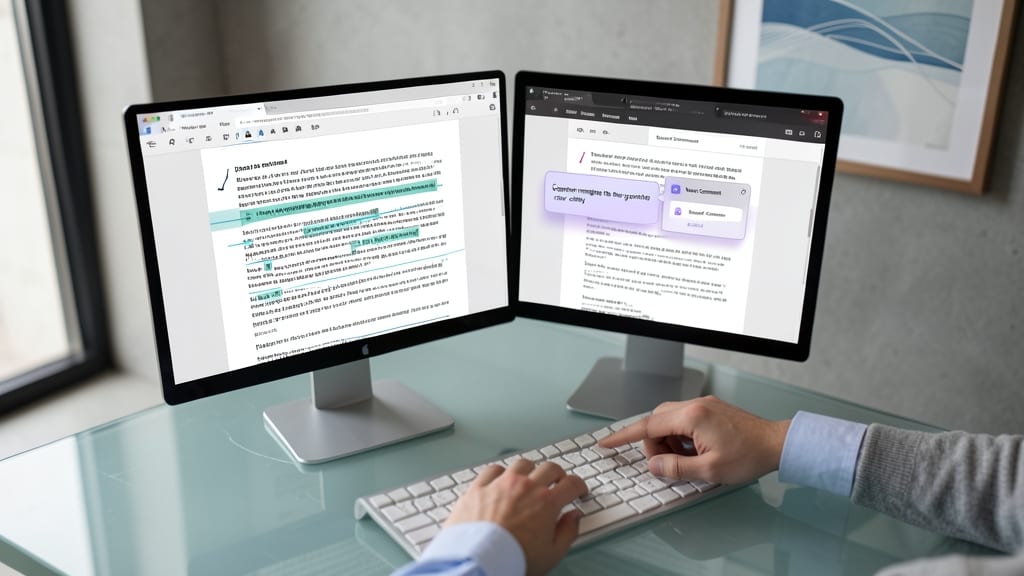
Tired of manually typing Greek letters or complex equations that take forever to format? Microsoft Word’s Equation Editor lets you insert pre-built math symbols, fractions, and calculus expressions with a single click—no LaTeX knowledge required.
Simply navigate to the Insert tab, click Equation, and browse hundreds of templates for integrals, matrices, or chemical formulas. The editor even auto-formats your work, so ∑ becomes Σ and ∫ becomes ∫ instantly. For advanced users, the linear equation builder lets you type equations naturally (e.g., "x^2 + y = z") and converts them to formatted output.
Perfect for students cramming for exams, engineers drafting specs, or researchers writing papers—this tool cuts equation setup time from minutes to seconds. ✨
Document Comparison Tool for Version Control
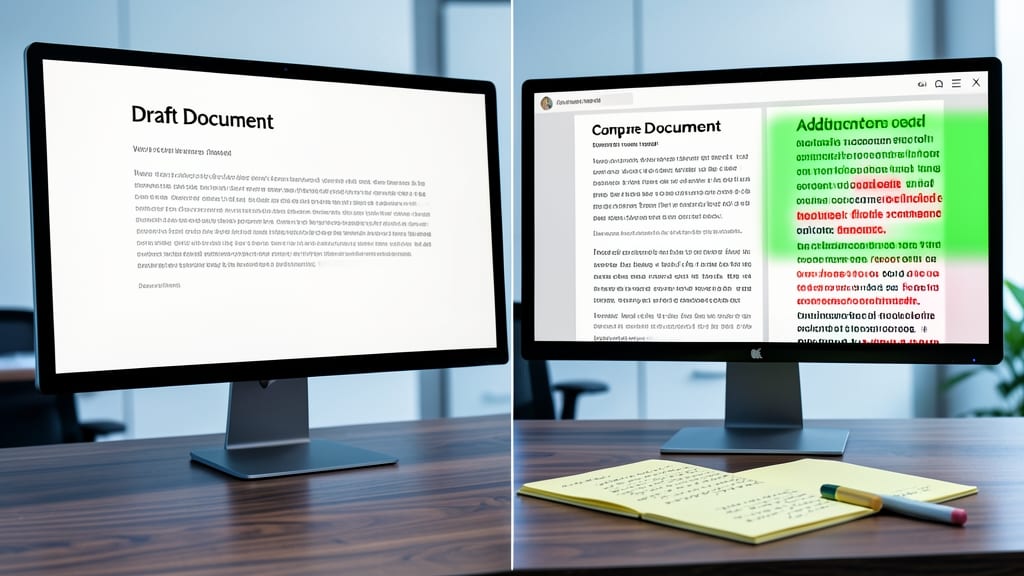
Ever spent hours manually comparing two versions of a document to spot changes? Word’s Compare Documents tool automates this with a side-by-side merge, highlighting additions in green and deletions in red—perfect for legal drafts, grant revisions, or any project with iterative feedback.
To use it, go to Review > Compare > Compare and select both files. The tool generates a combined document with a vertical bar marking differences, plus a summary of changes at the end. You can even accept/reject changes directly in the merged view, saving time on manual reviews.
This is a game-changer for teams working on contracts, research papers, or proposals—no more squinting at track changes or printing two versions. ⚡
Text to Speech for Proofreading and Accessibility

Struggling to spot awkward phrasing or typos in your writing? Microsoft Word’s built-in Text to Speech (TTS) feature lets you listen to your document aloud—catching errors your eyes might miss. This isn’t just for accessibility; it’s a game-changer for anyone who learns better by hearing content.
To enable it, go to View > Read Mode (or press Alt + V, then R). Choose from 12 natural-sounding voices (including male/female options) and adjust the speed (from slow to fast). The feature also supports pausing, rewinding, and bookmarking sections—perfect for reviewing long reports or scripts. For non-native English speakers, the British or American accent options can help refine pronunciation.
This tool shines for dyslexic users (who benefit from auditory cues) and busy professionals who prefer multitasking while editing. Try it next time you’re stuck on a tricky paragraph—your ears might catch what your eyes overlook! ✨
Smart Lookup for Instant Dictionary and Web Definitions
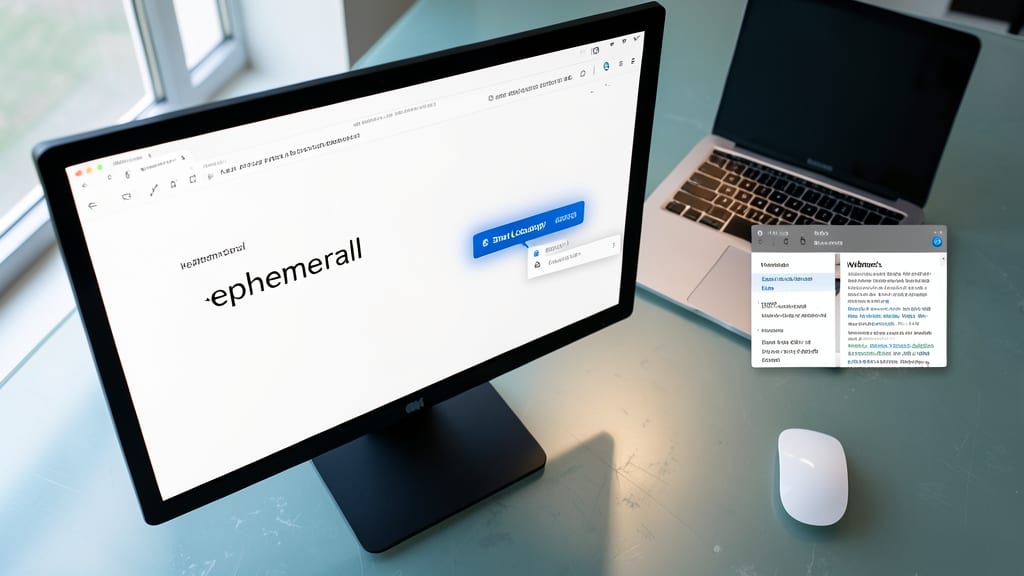
Tired of breaking your workflow to look up definitions or verify facts? Smart Lookup in Microsoft 365 Word integrates seamlessly into your writing process by providing instant access to dictionary definitions, synonyms, and even Wikipedia entries with just a right-click.
Simply right-click any word in your document and select Smart Lookup to see a floating pane with definitions, example sentences, and related articles—all without leaving Word. It supports 12 languages and pulls data from trusted sources like Oxford Dictionary and Bing, ensuring accuracy. This feature is especially useful for writers, students, and professionals who need quick context without switching tabs.
Perfect for researchers drafting papers or marketers crafting content, Smart Lookup keeps your focus on writing while providing reliable information at your fingertips. ⚡
Customizable Navigation Pane for Large Documents
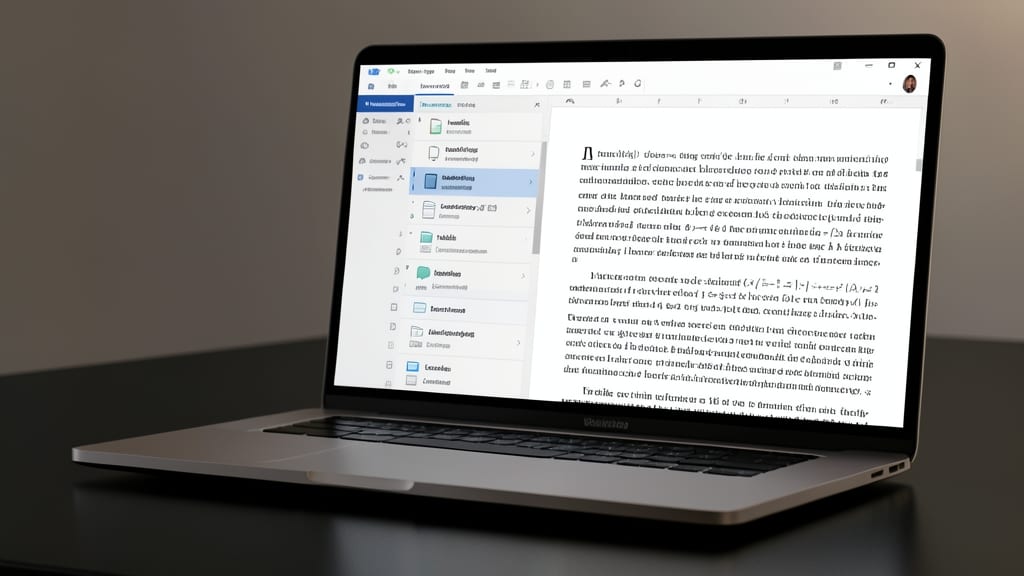
Struggling to navigate through a 50-page thesis or detailed technical manual? The Navigation Pane in Microsoft 365 Word transforms chaotic scrolling into effortless section-jumping. This hidden gem displays headings, tables, and even comments in a collapsible sidebar, letting you click directly to any part of your document.
Customize it to show only headings (for quick jumps) or all elements (for deep dives), and use the preview thumbnails to spot-check content before diving in. The pane updates automatically as you edit, so your structure stays synchronized—no more lost hours searching for buried sections. Even better, it works seamlessly with Word’s built-in styles, so properly formatted headings appear instantly.
Perfect for academics, technical writers, or project managers juggling complex documents, this feature turns Word into a dynamic table of contents—no extra tools required. ⚡