
PowerPoint
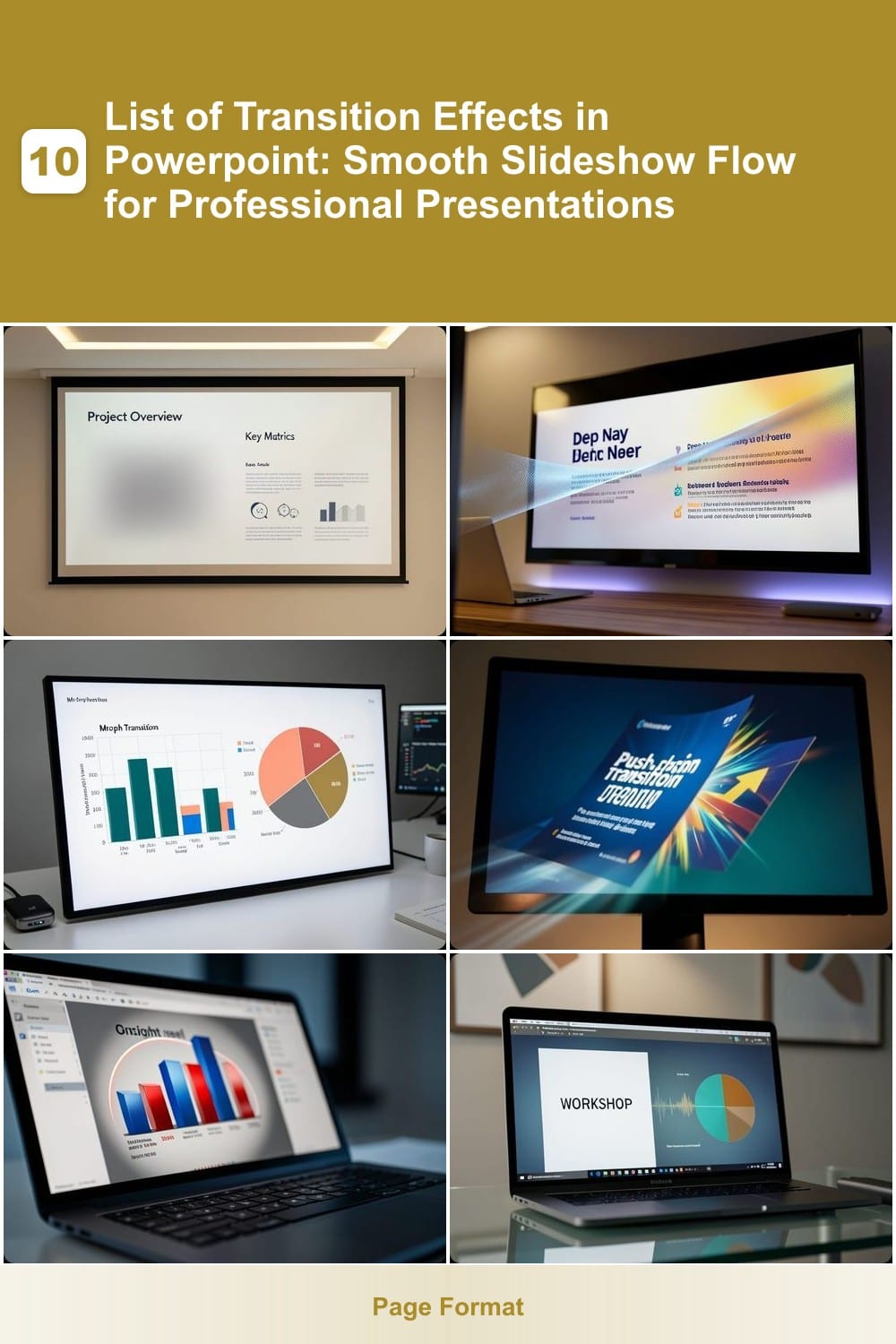
Want to elevate your PowerPoint presentations with polished, professional transitions? These seven transition effects help create smooth slideshow flow while keeping your audience engaged—whether you're delivering a corporate report or a creative pitch.
Fade Transition for Minimalist Professionalism
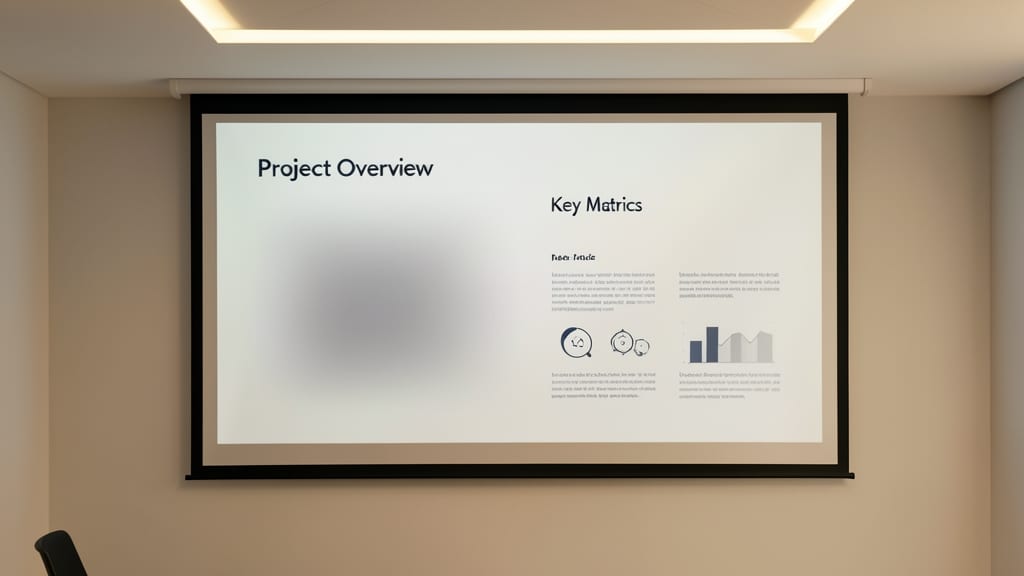
When your presentation demands subtle sophistication, the Fade transition delivers the perfect balance of elegance and professionalism. Unlike flashy animations, this effect gracefully dissolves one slide into the next, ensuring your content remains the star while maintaining a polished, distraction-free flow.
Available in PowerPoint 2016, 2019, and 365, the Fade transition is customizable with speed adjustments (from 0.1s to 5s) and sound effects (like subtle chimes or clicks). Its minimalist approach works seamlessly with dark or light backgrounds, making it ideal for corporate reports, financial reviews, or executive summaries where clarity is key.
Perfect for professionals who prioritize clean design, this transition keeps audiences focused on your message—not the motion. ⚡
Wipe Transition for Dynamic Storytelling
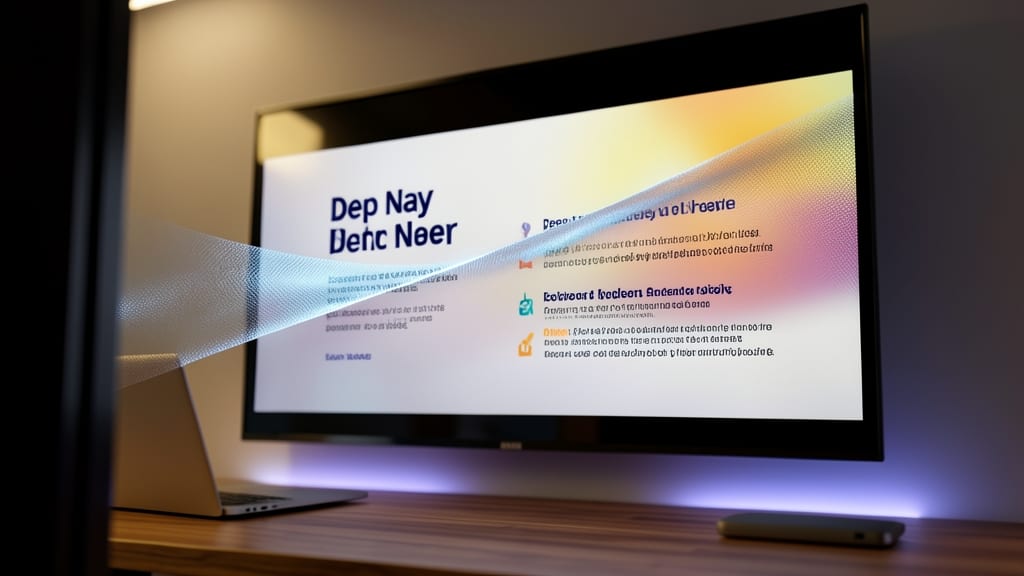
Tired of static slides that make your audience zone out? The wipe transition turns your presentation into a visual story—think of it as a cinematic door sliding open to reveal the next chapter of your narrative.
Available in horizontal, vertical, or diagonal directions, this effect mimics classic film transitions, adding a dynamic rhythm to your flow. Pair it with sound effects (like a subtle swoosh) to heighten the storytelling impact, or adjust the wipe speed to control pacing. For extra polish, use a consistent color scheme (e.g., matching slide borders) to reinforce your brand or theme.
Storytellers, educators, and marketers will love this for keynotes, product demos, or training modules where engagement hinges on emotional connection. 🌟
Morph Transition for Data-Driven Presentations
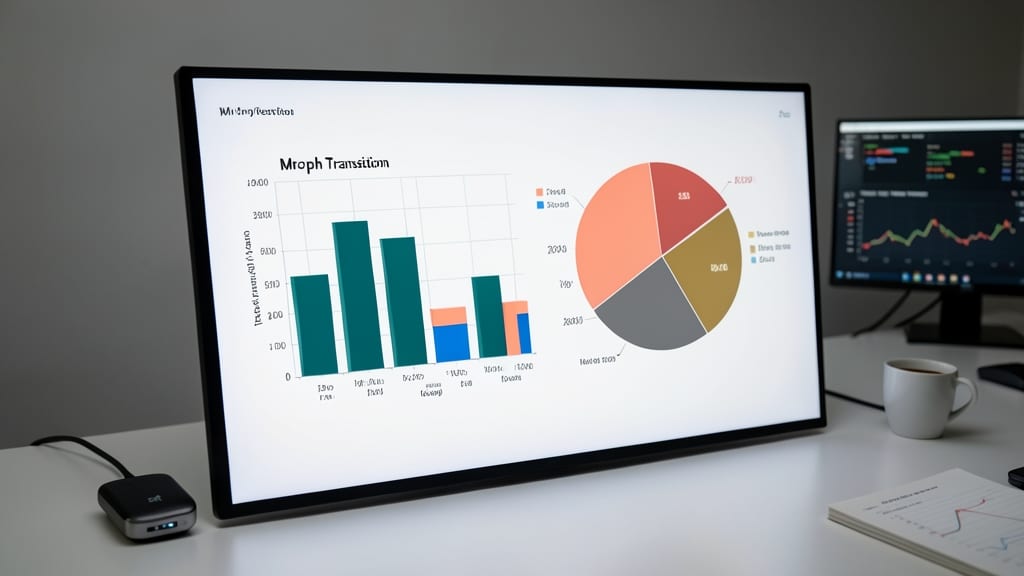
When your audience includes data analysts or finance teams, Morph Transition turns dry numbers into a visual story. Unlike abrupt cuts or fades, this effect lets charts and graphs smoothly evolve—like a bar chart transforming into a pie chart—without losing clarity. It’s built into PowerPoint 365 and 2019, with zero extra plugins needed.
The magic happens with automatic alignment of objects, so labels and axes stay perfectly synced during transitions. You can even adjust the transition speed to match your pacing, ensuring complex data doesn’t overwhelm. For presentations with live updates or comparisons, this keeps viewers focused on insights, not the mechanics.
Perfect for board meetings, investor pitches, or academic research, where data integrity matters as much as delivery. ⚡
Push Transition for High-Energy Presentations
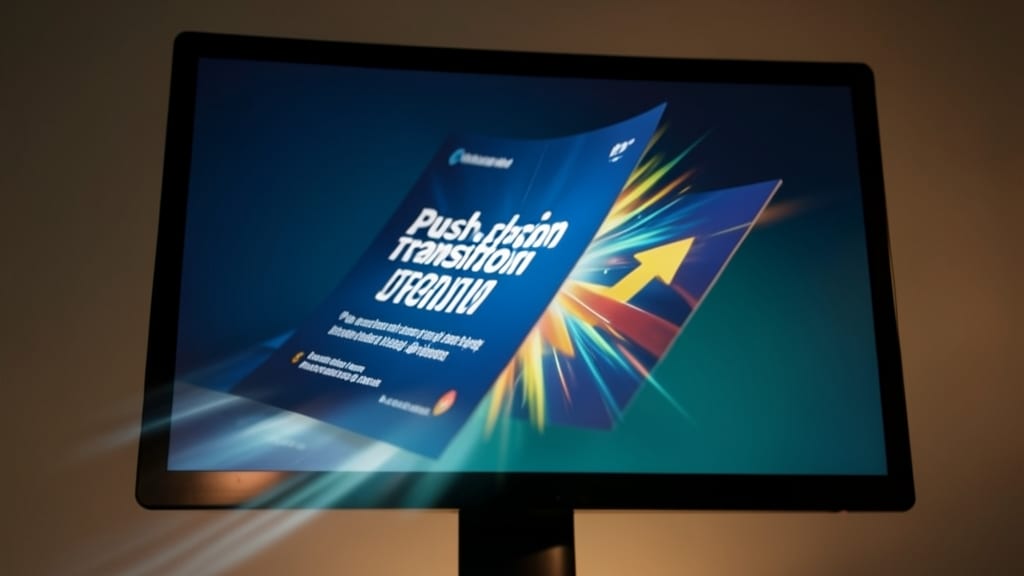
Need to inject energy into your next pitch? The Push Transition in PowerPoint is your secret weapon—it creates a dynamic "forward motion" effect that mimics urgency and momentum, perfect for sales decks or motivational talks.
This transition slides content from the bottom or sides, giving the illusion of movement toward the audience. Adjust the speed and direction in the transition settings to control pacing, and pair it with bold visuals for maximum impact. Unlike static fades, it keeps viewers leaning in, making it ideal for high-stakes moments where engagement matters most.
Sales teams and motivational speakers swear by this effect to drive home key points—just avoid overusing it, or you’ll risk looking gimmicky. For presentations where you want your audience to feel the push forward, this is your go-to. 💪
Zoom Transition for Emphasis Points

Struggling to make your key slides stand out? The Zoom Transition in PowerPoint is your secret weapon for grabbing attention—literally. By zooming in on critical content, you create a visual "highlight reel" that signals to your audience: this part matters.
This effect works by scaling content to fill the screen (or zooming out from a specific point) with adjustable speed and direction. You can even set it to pause on the zoomed-in slide for dramatic effect, ensuring your audience absorbs the message. Perfect for emphasizing statistics, call-to-action slides, or closing arguments, it adds a cinematic touch without overwhelming your presentation.
Trainers, sales teams, and educators will love this transition for its ability to anchor focus on high-impact slides. Just avoid overusing it—think of it as your presentation’s equivalent of a spotlight. ✨
Slide Transition with Sound for Interactive Engagement
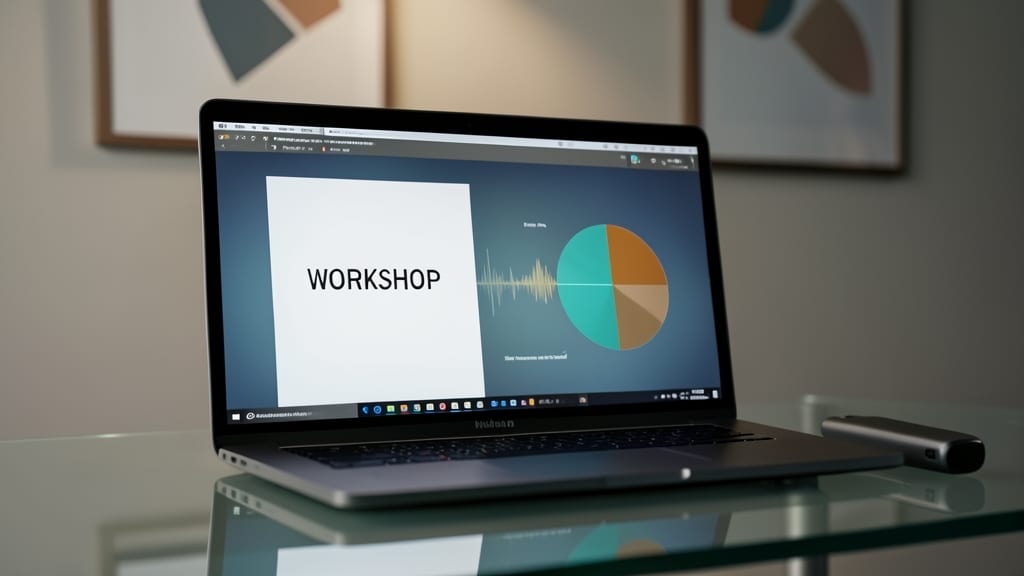
Tired of presentations where your audience zones out during transitions? The Slide Transition with Sound adds an unexpected auditory layer that snaps viewers back into focus—perfect for training sessions or workshops where engagement is critical.
PowerPoint lets you pair transitions like Morph or Push with subtle sound effects (e.g., a soft chime or click). This isn’t just visual flair—it’s a multisensory tool to signal slide changes without interrupting your flow. Pro tip: Use low-volume cues to avoid overwhelming the room, and sync them with key moments to reinforce your message.
Trainers and educators will love this for interactive sessions, while sales teams can use it to punctuate critical points. Just remember: less is more—subtle sounds work best. ✨
Custom Path Transition for Creative Freedom
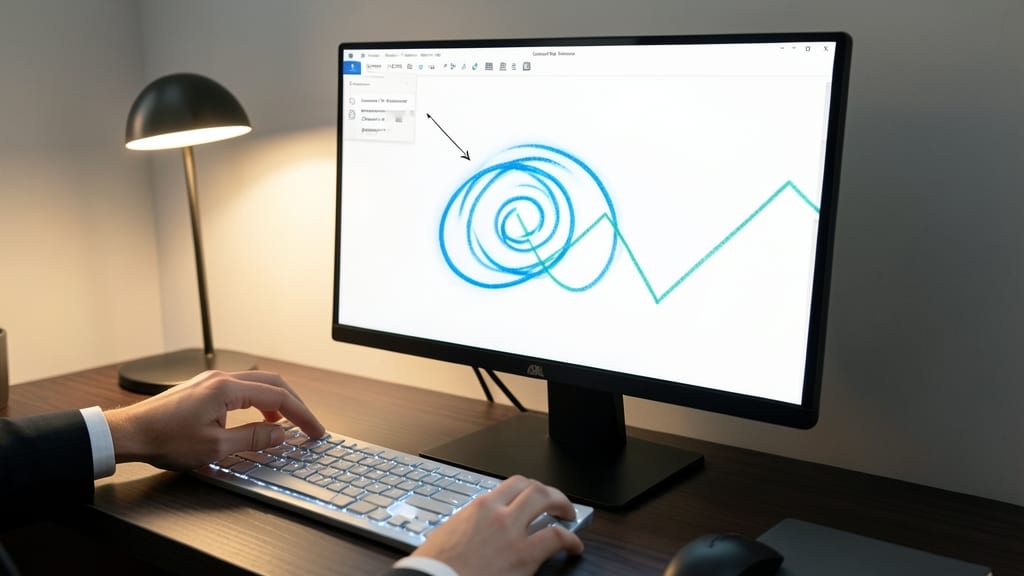
Tired of the same old slide transitions? The Custom Path Transition in PowerPoint lets you draw your own movement path—whether it’s a spiral, zigzag, or even a custom logo shape—to make your presentation uniquely yours.
Available in PowerPoint 2013 and later, this effect lets you fine-tune the start and end points of your transition, giving you full control over how slides enter or exit. Pair it with timing adjustments to create a signature style that aligns with your brand or creative vision.
Perfect for designers, artists, and innovators who want to stand out, this transition turns your presentation into an interactive experience. ✨